
UDISE+ Data Import Guide
Bulk upload students and teachers using Excel
📥 Bulk Import Data
Save time by uploading multiple records at once
📋 Import Templates Available
Student Bulk Upload
Add multiple students at once
Key Fields: Name, Class, Section, DOB, Gender, Category, Aadhaar, Parent Info, Address
Teacher Bulk Upload
Add multiple teachers
Key Fields: Name, Designation, Qualification, Subject, DOJ, Gender, Contact, Training Status
Student Promotion
Bulk class promotion
Key Fields: Student ID, Previous Class, New Class, Promotion Status, Result
Infrastructure Data
Facilities information
Key Fields: Building Details, Rooms, Toilets, Water, Electricity, Labs, Equipment
📝 Step-by-Step Import Process
Login to UDISE+ → Go to Import Section → Download Template for the data type. Always use fresh template - don't reuse old files.
Open template in Microsoft Excel. Read column headers carefully. Check for dropdown validations and field instructions in the template.
Row 1 contains headers - DO NOT modify. Start entering data from Row 2. Follow exact format for dates, numbers, and codes.
Check all entries for: correct date format, valid Aadhaar (12 digits), proper codes. Remove any blank rows at the bottom.
Save As → Excel Workbook (.xlsx). Do NOT save as .xls, .csv, or other formats. Keep file size under 5MB.
Go to Import section → Click Upload → Select your file → Wait for processing. Don't close browser during upload.
Check import status. Download error report if any records failed. Fix errors and re-upload only the failed records.
📏 Data Format Requirements
| Field Type | Format | Example |
|---|---|---|
| Date of Birth | DD/MM/YYYY | 15/08/2015 |
| Aadhaar Number | 12 digits, no spaces | 123456789012 |
| Mobile Number | 10 digits, no prefix | 9876543210 |
| Gender | M / F / T | M (Male), F (Female), T (Transgender) |
| Category | Use code from dropdown | GEN, SC, ST, OBC |
| Class | Numeric or as specified | 1, 2, 3... or I, II, III... |
✅ Pre-Upload Checklist
✓ File Requirements
- Official template used (not modified headers)
- Saved as .xlsx format
- File size under 5 MB
- Maximum 500 records per file
- No blank rows in middle or end
- No extra columns added
✓ Data Requirements
- All mandatory fields filled
- Date format: DD/MM/YYYY
- Aadhaar: 12 digits, no spaces
- Mobile: 10 digits
- Dropdowns used where provided
- No special characters in names
✓ Before Upload
- Stable internet connection
- Off-peak hours (early morning best)
- Browser: Chrome recommended
- Keep backup of file
- Session is active (not timed out)
- Data entry deadline not passed
⚠️ Common Import Errors & Solutions
Save file as .xlsx using "Save As" in Excel. Don't just rename the extension.
Download fresh template. Don't delete, add, or rename columns.
Use DD/MM/YYYY format. Format cells as Text before entering dates.
Student already exists. Check and remove duplicate entries.
For more error solutions, see Upload Failed Troubleshooting
💡 Tips for Successful Import
- Test with 5-10 records first before bulk upload
- Keep Aadhaar numbers as Text format to preserve leading zeros
- Use Copy-Paste Values (not formulas) from other sources
- Split large datasets into multiple files (500 records each)
- Upload during early morning hours (6-9 AM) for faster processing
- Keep original data backup before any import
Frequently Asked Questions
Import is primarily for adding new records. For updating existing students/teachers, use the Edit option in the portal. Some update operations may have separate bulk update templates - check with your Block office.
Records processed before the failure will be saved. Download the error report to see which records failed and why. Create a new file with only the failed records, fix errors, and re-upload.
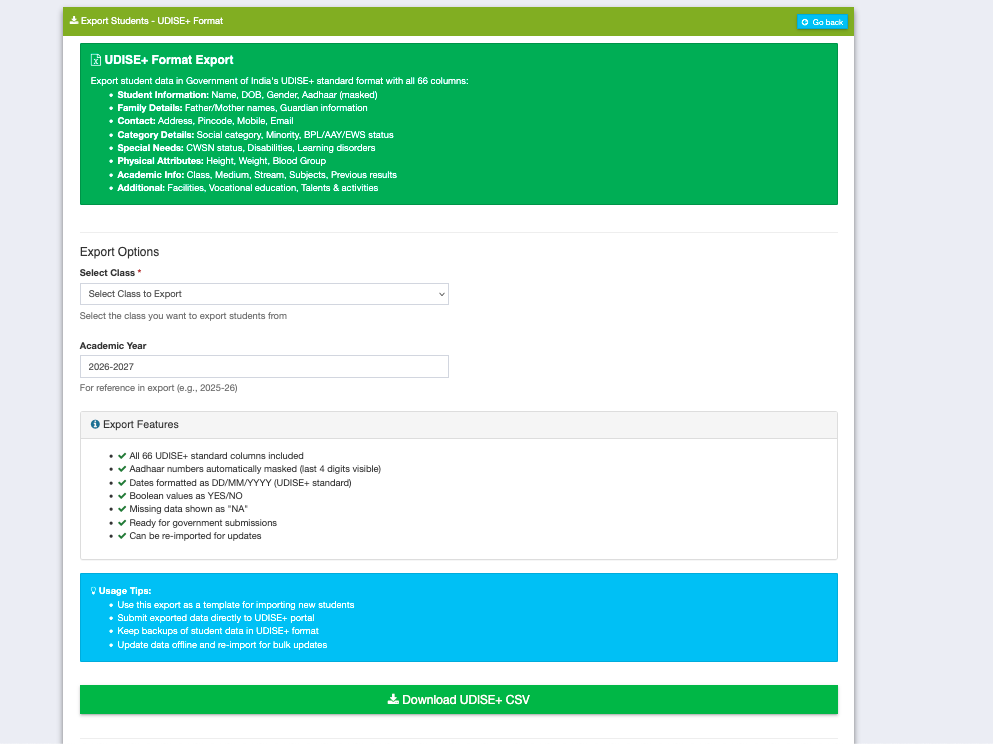
You need to export data from your software into the UDISE+ template format. Copy data carefully matching columns. Schoolites software provides direct UDISE+ compatible export format for seamless transfer.
Currently, validation happens during upload. For pre-validation, manually check: date formats, Aadhaar digit count, mobile number length, and that all mandatory fields are filled. Some states may offer offline validation tools.
Tired of Manual UDISE+ Data Entry?
Let Schoolites handle the complexity. Export UDISE-ready data in one click, reduce errors by 99%, and never miss a deadline again.
Try Schoolites Free