
UDISE+ Upload Failed Solutions
Fix Excel, file format, and bulk upload errors
📤 UDISE+ Upload Specifications
Ensure your file meets these requirements before uploading
File Format Not Supported
Error: "Invalid file format" or "Only .xlsx files accepted"
Supported vs Unsupported Formats:
✅ Solutions:
- Download the official template from UDISE+ portal
- Open in Microsoft Excel (or compatible software)
- Save as: Excel Workbook (.xlsx) - not "Excel 97-2003"
- Don't just rename file extension - actually convert the file
File Size Exceeds Limit
Error: "File too large" or upload hangs/times out
Size Reduction Strategies:
| Issue | Solution | Impact |
|---|---|---|
| Too many rows | Split into multiple files (500 rows each) | High |
| Extra blank rows | Delete all rows after last data row | Medium |
| Heavy formatting | Remove colors, borders, fonts | Medium |
| Embedded images | Remove all images from file | High |
| Extra sheets | Delete unused worksheets | Low |
| Formulas | Convert formulas to values (Paste Special) | Low |
📋 Pre-Upload Checklist:
Split larger datasets into multiple files
Select blank rows → Right-click → Delete
Don't add extra columns beyond template
Logos, photos, shapes increase size dramatically
Column Mapping / Template Error
Error: "Invalid column structure" or "Header mismatch"
This error occurs when the file structure doesn't match what UDISE+ expects. The portal validates column headers and order strictly.
❌ Common Template Mistakes:
- Renaming column headers
- Deleting or adding columns
- Changing column order
- Data in first row (should be headers)
- Using old/outdated template version
📥 Always Use Official Template
Download fresh template from UDISE+ portal before each upload session
Go to UDISE+ Portal →✅ Correct Approach:
Go to the specific upload section and download current template
Keep all column headers exactly as provided
First data row should be row 2, not row 1
Keep original filename format if specified
Partial Upload / Some Rows Failed
Message: "X records uploaded, Y records failed"
This is actually partial success! Some records were uploaded successfully, but others had validation errors.
📊 How to Fix Failed Records:
Click "Download Error Report" button after upload - shows failed rows with specific errors
Copy ONLY failed records to new template. Don't include successful ones (causes duplicates!)
Refer to error column in report - fix exact issues mentioned
Upload the new file with only corrected records
Upload Timeout / Connection Lost
Upload hangs, browser freezes, or connection error appears
Possible Causes & Solutions:
Use wired connection if possible. Avoid WiFi during upload.
Reduce file size. Split into smaller chunks of 200-300 records.
Try uploading early morning (6-9 AM) or late night (10 PM - 12 AM).
Wait 10-15 minutes and try again. Check UDISE+ status announcements.
✅ Pre-Upload Verification Checklist
✅ Do This
- Use official template
- Keep file under 5MB
- Max 500 rows per file
- Save as .xlsx format
- Verify data before upload
- Use stable internet
- Upload during off-peak hours
❌ Don't Do This
- Modify column headers
- Add extra columns
- Use old templates
- Include images/objects
- Leave blank rows
- Re-upload full file after partial success
- Close browser during upload
Frequently Asked Questions
Yes, but you must download as .xlsx format from Google Sheets (File → Download → Microsoft Excel). Direct sharing links won't work. Verify the downloaded file opens correctly in Excel before uploading.
UDISE+ shows a confirmation message with count of records uploaded. Check the data entry section to verify records appear. Download the upload report for detailed status.
Uploading the same file again may create duplicate entries. The system may reject duplicates based on Aadhaar, but it's best to upload once and verify success.
You can edit individual records through the portal. For bulk corrections, there's no bulk update feature - you'll need to edit each record or contact Block office for major corrections.
Tired of Manual UDISE+ Data Entry?
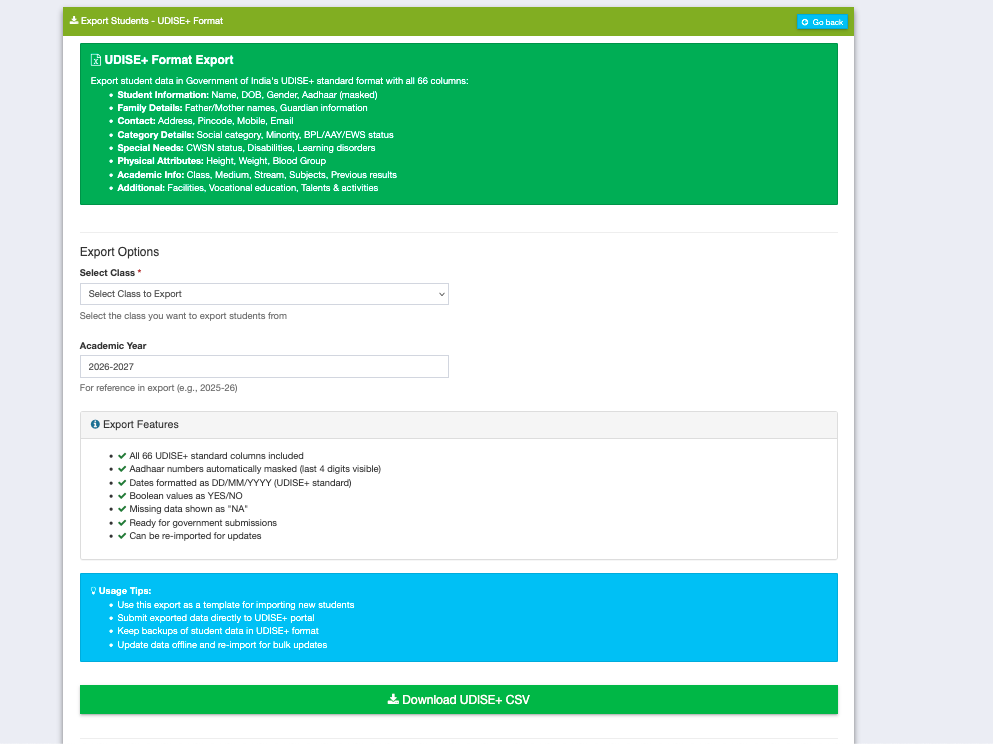
Let Schoolites handle the complexity. Export UDISE-ready data in one click, reduce errors by 99%, and never miss a deadline again.
Try Schoolites Free